Quantgnome Leap⚓︎
Difficulty:
Direct link: Quantgnome Leap
Objective⚓︎
Request
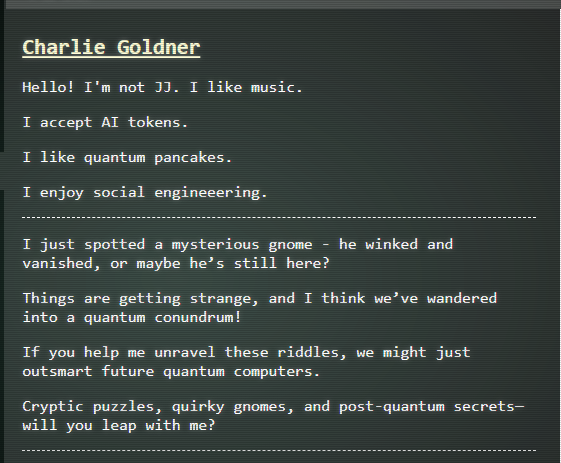
Charlie in the hotel has quantum gnome mysteries waiting to be solved. What is the flag that you find?
Charlie Goldner
Hints⚓︎
Quantgnome Leap
When you give a present, you often put a label on it to let someone know that the present is for them. Sometimes you even say who the present is from. The label is always put on the outside of the present so the public knows the present is for a specific person. SSH keys have something similar called a comment. SSH keys sometimes have a comment that can help determine who and where the key can be used.
Solution⚓︎
Charlie asked me to explore the quantgnome server, follow the key trail, and recover the final flag.
The intro message explained the PQC theme and asked me to find and execute the key generation program.
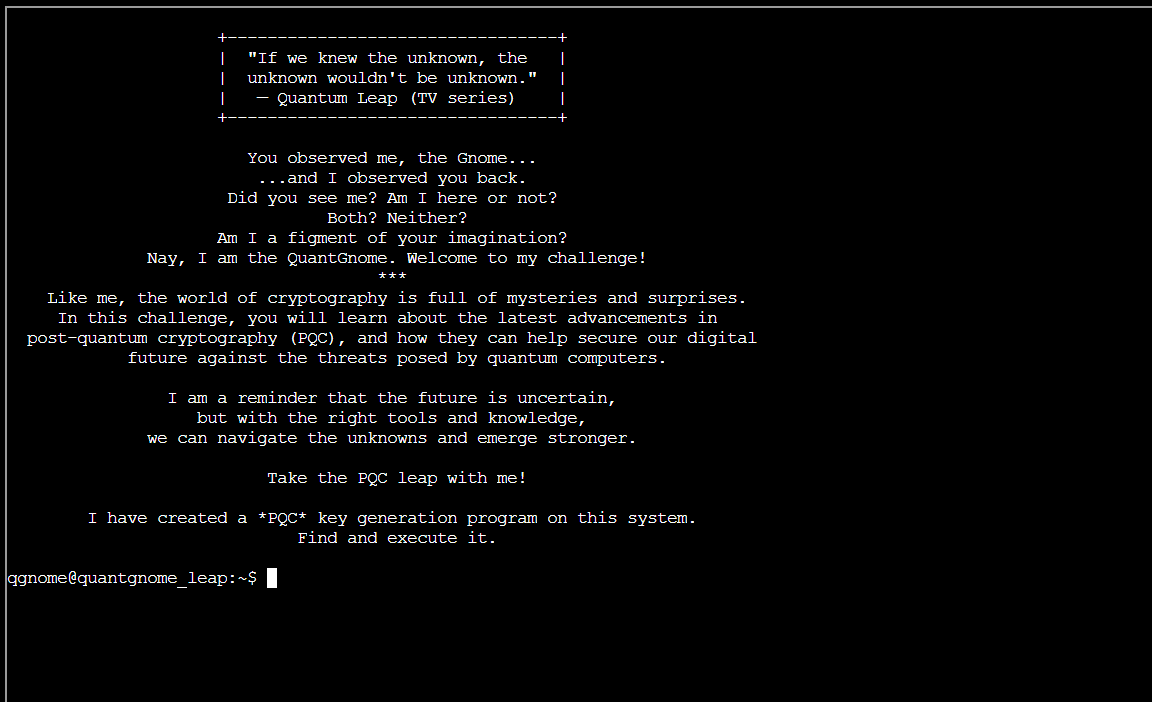
I started by listing files and checking the SSH directory:
| List files and SSH keys | |
|---|---|
1 2 | |
The SSH directory shows that there is a public key file. Based on the hint I got, there could be useful information as a comment in this file.

Next, I viewed the RSA public key to see the key comment:
| View RSA public key | |
|---|---|
2 | |
The comment revealed that the public key is associated to the gnome1 account.

I checked the hosts file to find the PQC server IP, and I connected as gnome1:
| Check hosts and connect | |
|---|---|
3 4 | |
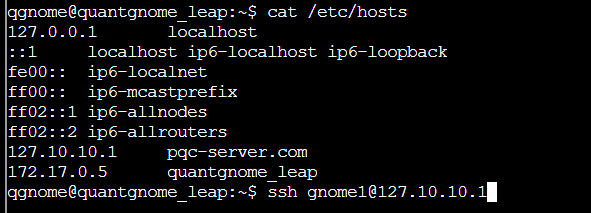
The login succeeded and instructed me to find access for gnome2.

I enumerated the SSH keys and found the ED25519 key for gnome2 same way as for gnome1:
| Find ED25519 key | |
|---|---|
4 5 6 7 | |
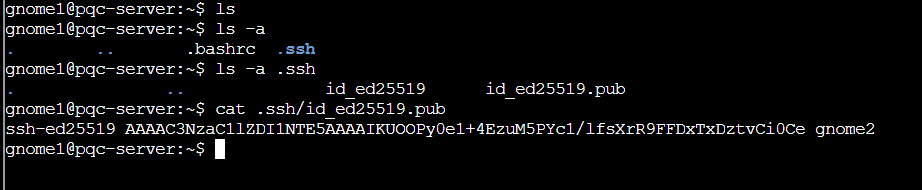
Using that key, I connected as gnome2:
| Connect as gnome2 | |
|---|---|
5 | |
After successful connection to gnome2, I was asked to find the information for gnome3.

This time I found a MAYO key, so I pulled the next public key and the gnome4 account name:
| Find MAYO key | |
|---|---|
6 7 8 | |
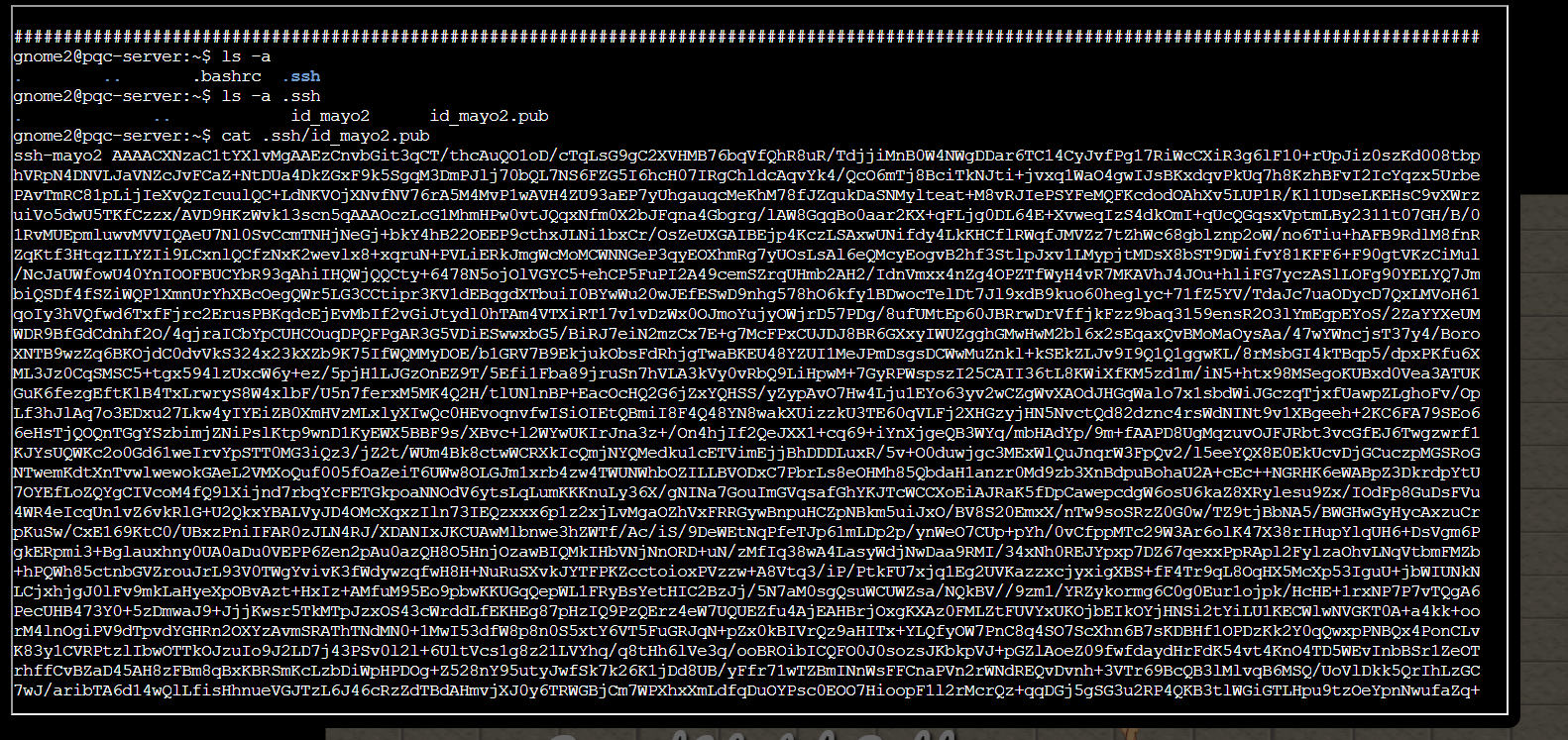
I connected as gnome3, then listed keys and used the hybrid key to connect to gnome4:
| Connect as gnome3 and use hybrid key | |
|---|---|
7 8 9 10 | |
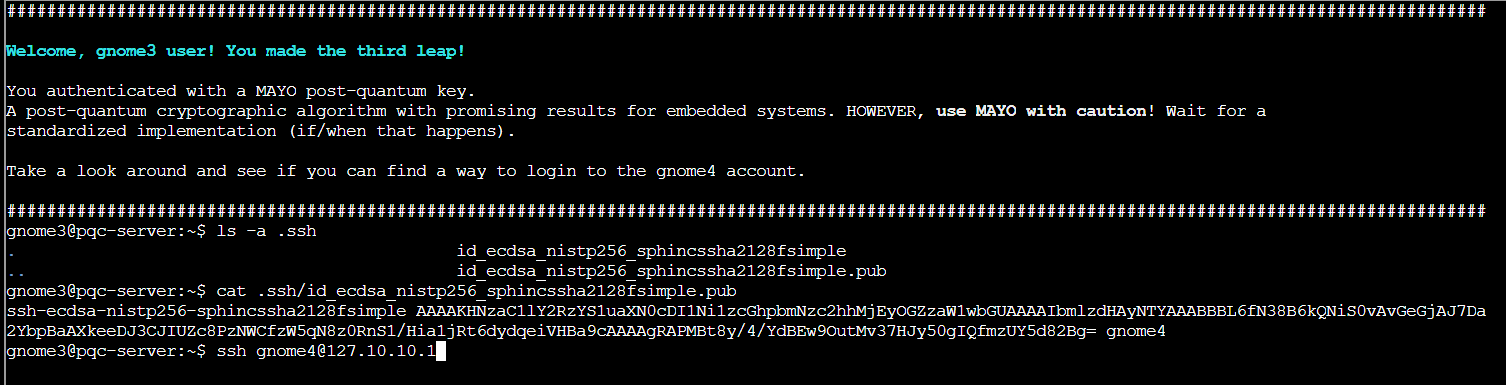
The login to gnome4 succeeded and explained the hybrid key details.
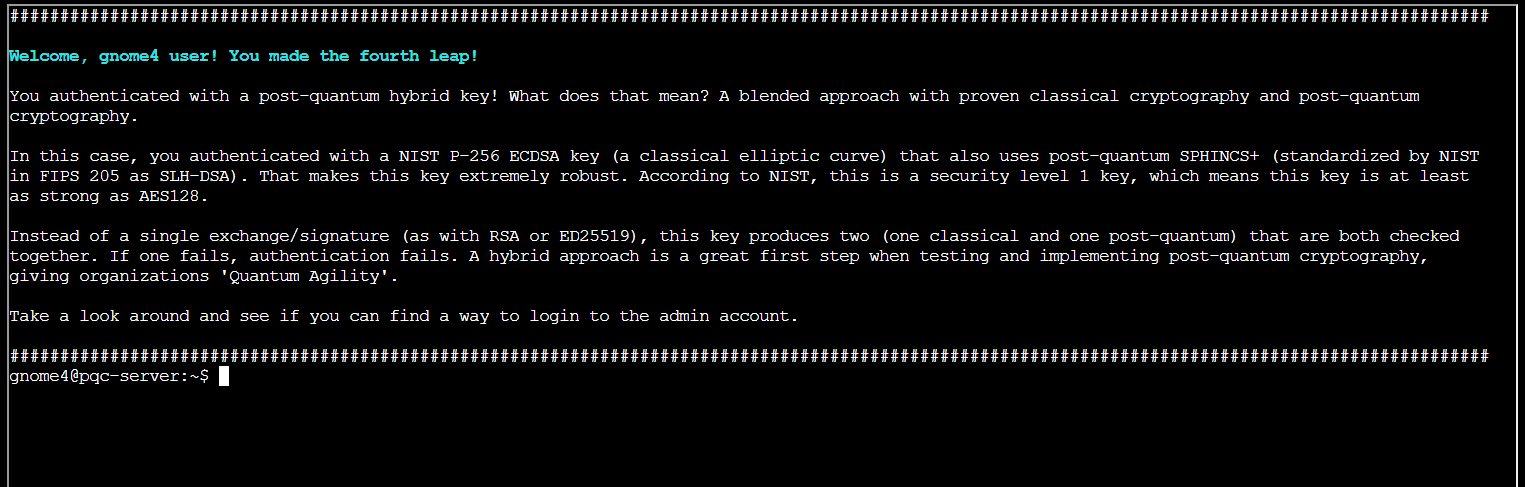
I inspected the next key as requested, and it pointed to the admin account:
| Find admin key | |
|---|---|
8 9 | |
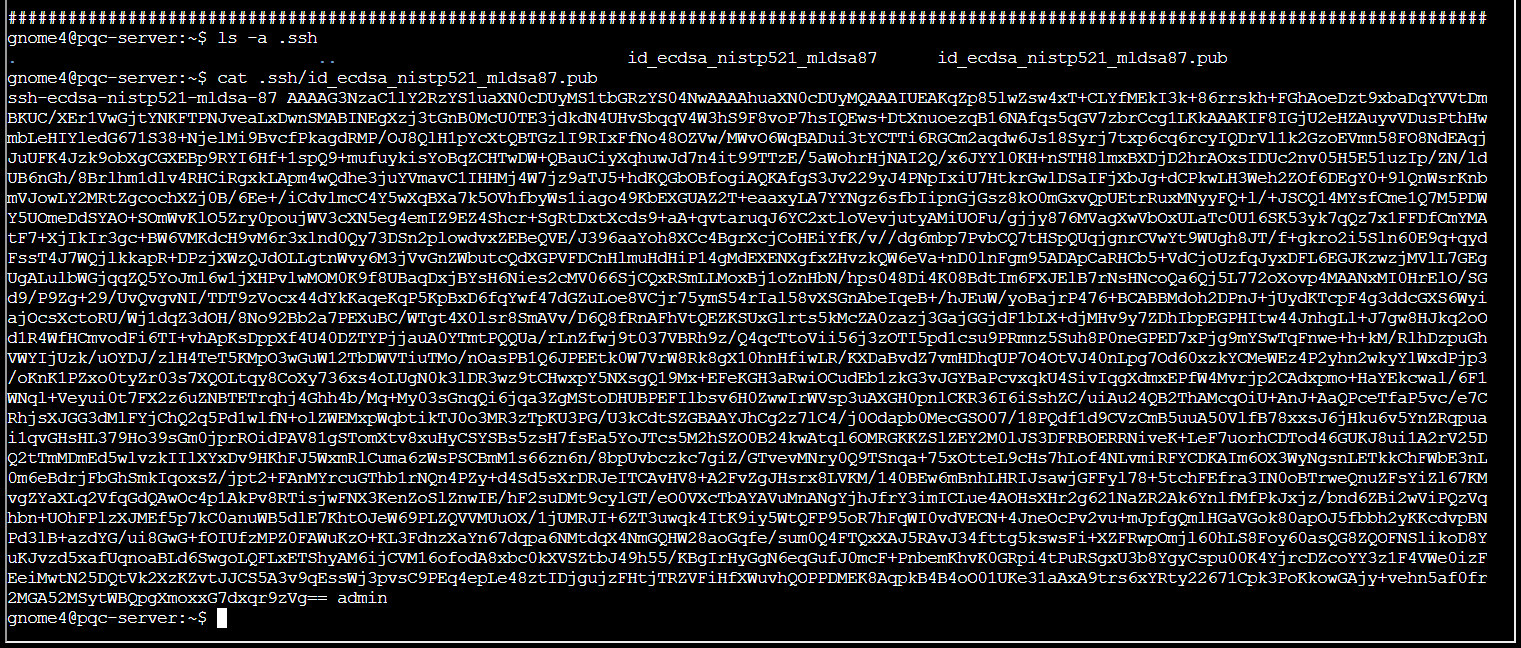
I connected as admin to reach the final stage:
| Connect as admin | |
|---|---|
9 | |
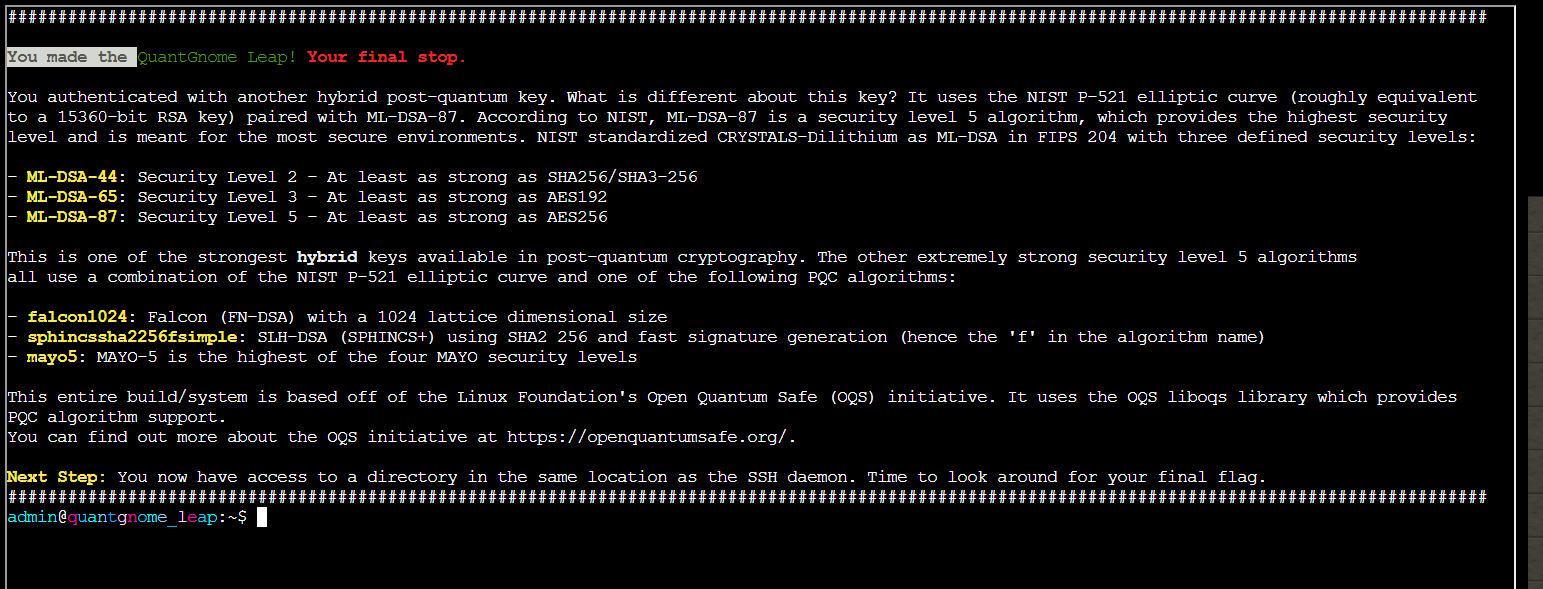
From the admin shell, I searched for the flag using the find command:
| Find the flag | |
|---|---|
10 | |

The output revealed the flag path under /opt/oqs-ssh/flag.

I opened the flag file to capture the final value.
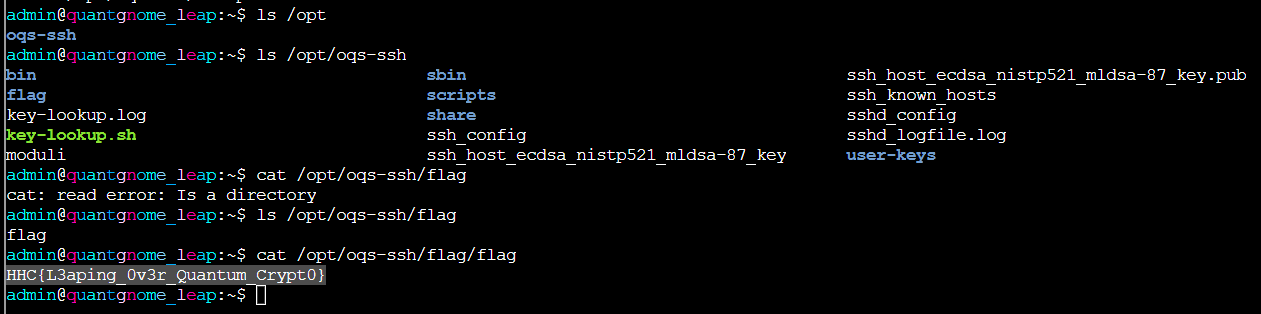
After submitting the flag, the objective was added to the achievements list.

Answer
HHC{L3aping_0v3r_Quantum_Crypt0}
Response⚓︎
Charlie Goldner
That was wild-who knew quantum gnomes could hide so many secrets?